

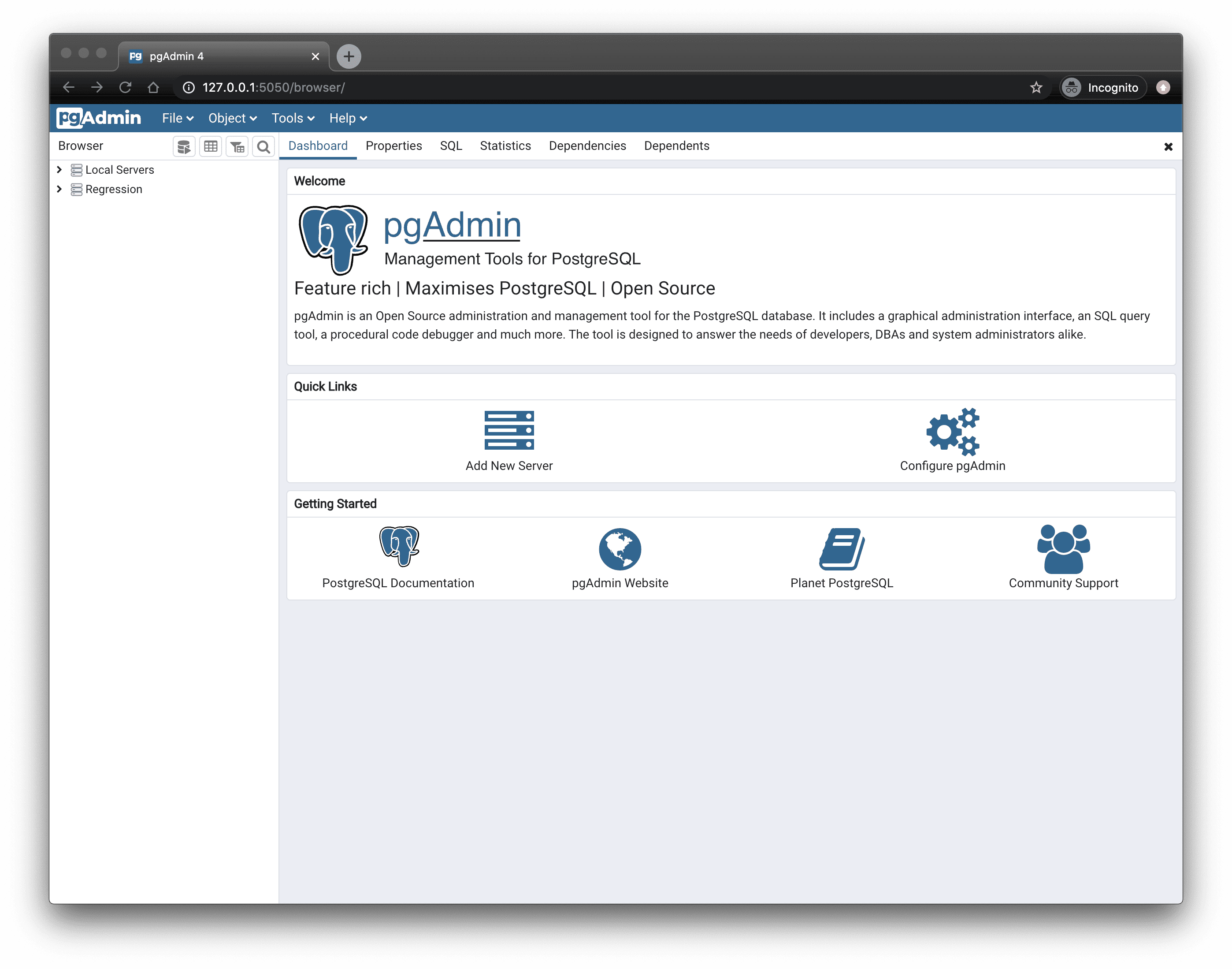
 This page explains how to integrate pgAdmin with your .
Prerequisites
To follow the steps on this page:- Create a target with the Real-time analytics capability enabled. You need your connection details. This procedure also works for .
- Download and install pgAdmin.
Connect pgAdmin to your Tiger Cloud service
To connect to :- Start pgAdmin
- In the
Quick Linkssection of theDashboardtab, clickAdd New Server - In
Register - Server>General, fill in theNameandCommentsfields with the server name and description, respectively - Configure the connection
- In the
Connectiontab, configure the connection using your connection details. - If you configured your to connect using a stricter SSL mode, then in the
SSLtab checkUse SSL, setSSL modeto the configured mode, and in theCA Certificatefield type the location of the SSL root CA certificate to use.
- In the
- Click
Save