
Prerequisites
To follow the steps on this page:- Create a target with the Real-time analytics capability enabled. You need your connection details. This procedure also works for .
- Sign up for Fivetran
Set your Tiger Cloud service as a destination in Fivetran
To be able to inject data into your , set it as a destination in Fivetran: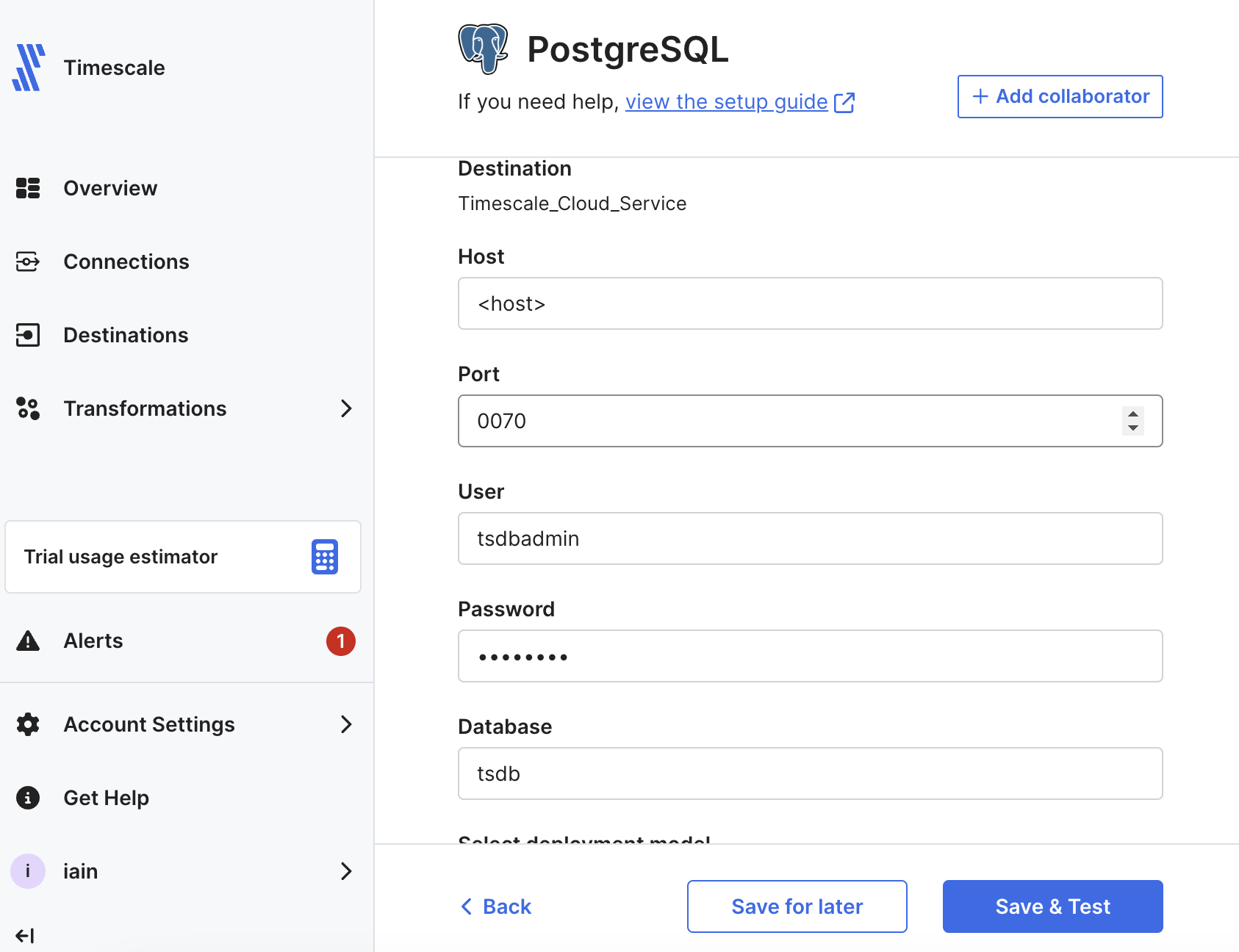
-
In Fivetran Dashboard > Destinations, click
Add destination. -
Search for the connector and click
Select. Add the destination name and clickAdd. -
In the setup, add your connection details, then click
Save & Test. Fivetran validates the connection settings and sets up any security configurations. -
Click
View Destination. TheDestination Connection Detailspage opens.
Set up a Fivetran connection as your data source
In a real world scenario, you can select any of the over 600 connectors available in Fivetran to sync data with your . This section shows you how to inject the logs for your Fivetran connections into your .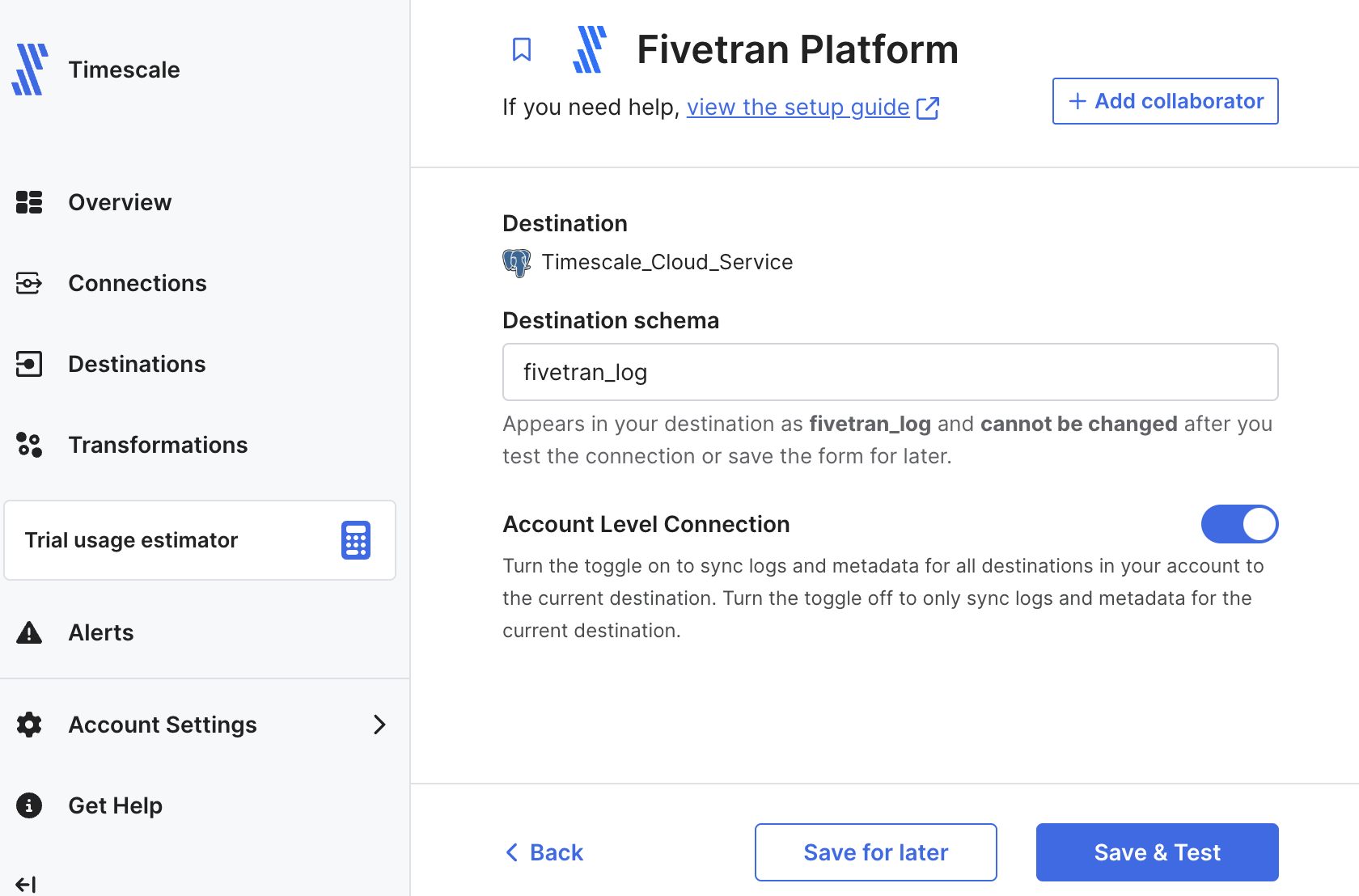
-
In Fivetran Dashboard > Connections, click
Add connector. -
Search for the
Fivetran Platformconnector, then clickSetup. -
Leave the default schema name, then click
Save & Test. You seeAll connection tests passed! -
Click
Continue, enableAdd Quickstart Data Modeland clickContinue. Your Fivetran connection is connected to your destination. -
Click
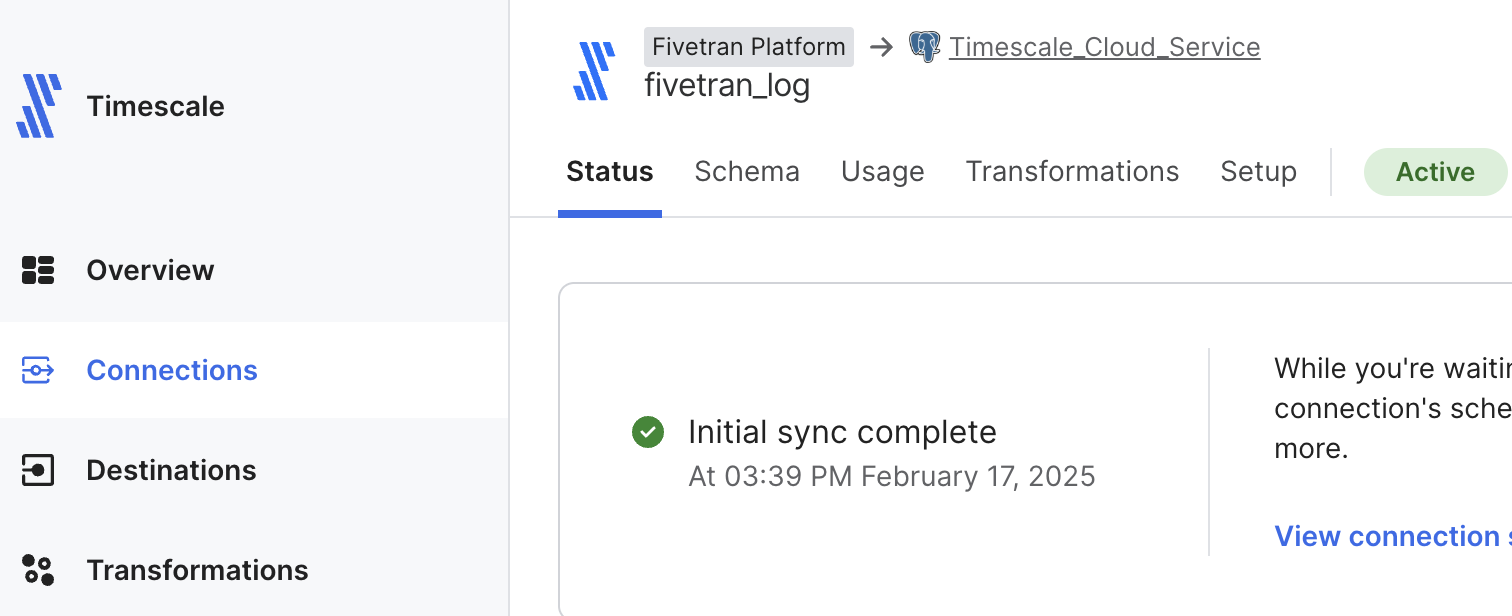
Start Initial Sync. Fivetran creates the log schema in your and syncs the data to your .
View Fivetran data in your Tiger Cloud service
To see data injected by Fivetran into your :-
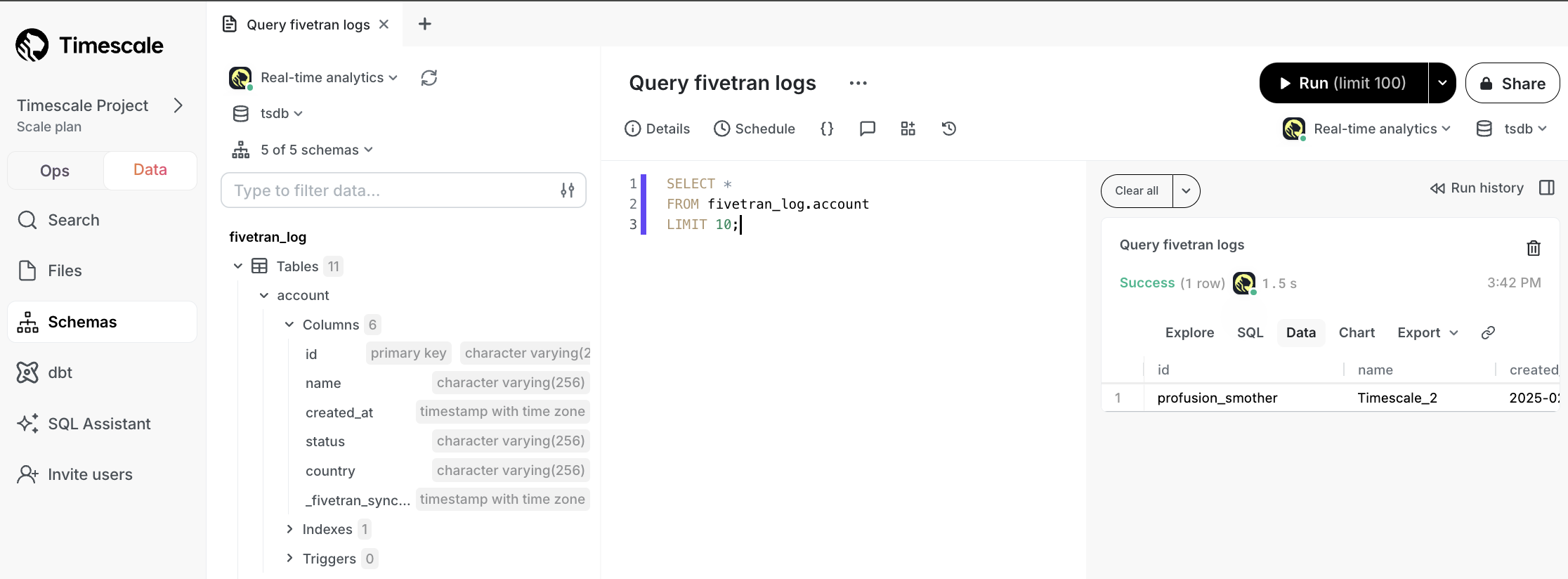
In data mode in , select your , then run the following query:
You see something like the following: