

Prerequisites
To follow the steps on this page:- Create a target with the Real-time analytics capability enabled. You need your connection details.
- Set up AWS Transit Gateway.
This feature is currently not supported for on Microsoft Azure.
Connect your AWS infrastructure to your Tiger Cloud services
To connect to :-
Create a Peering in
-
In
Security>VPC, clickCreate a VPC: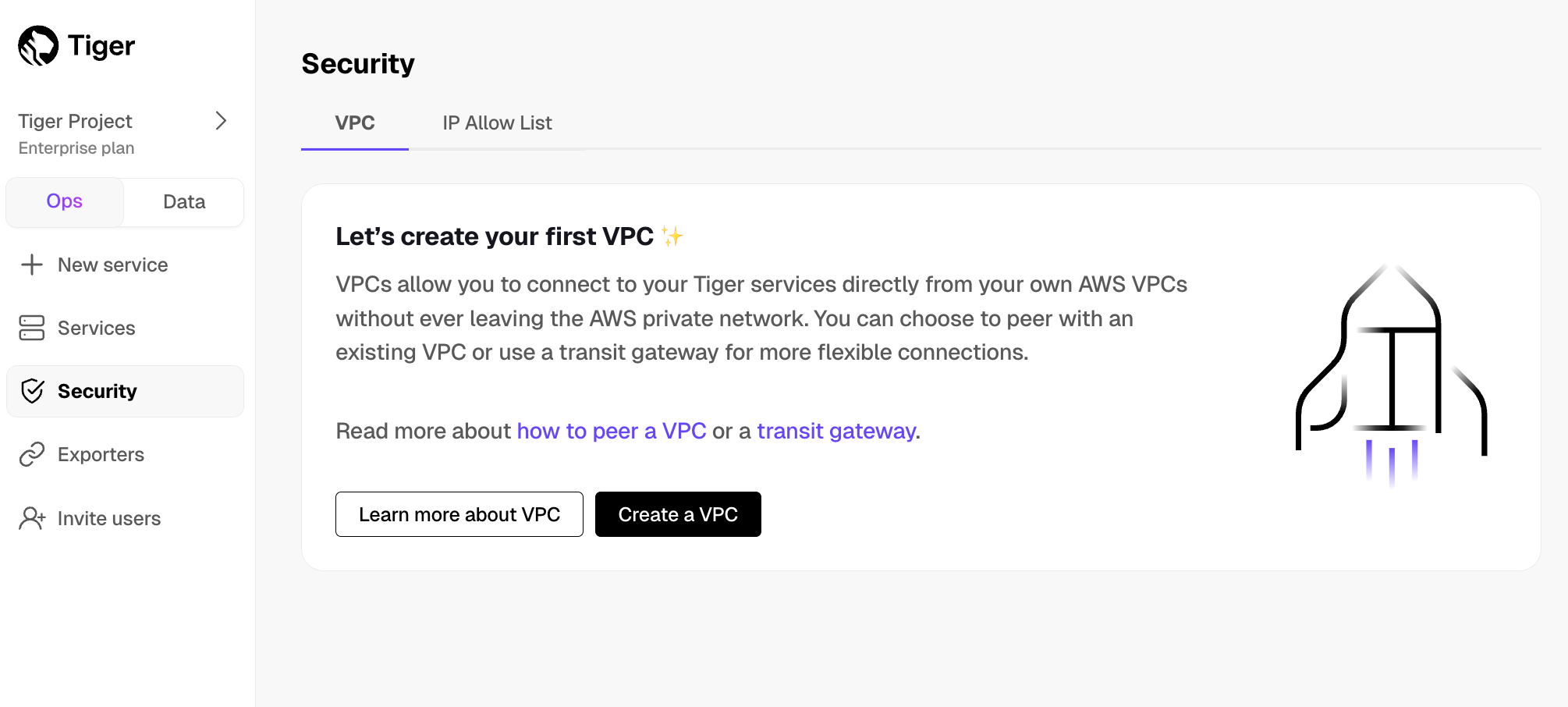
-
Choose your region and IP range, name your VPC, then click
Create VPC: Your and Peering must be in the same AWS region. The number of Peering s you can create in your project depends on your . If you need another Peering , either contact support@tigerdata.com or change your plan in .
-
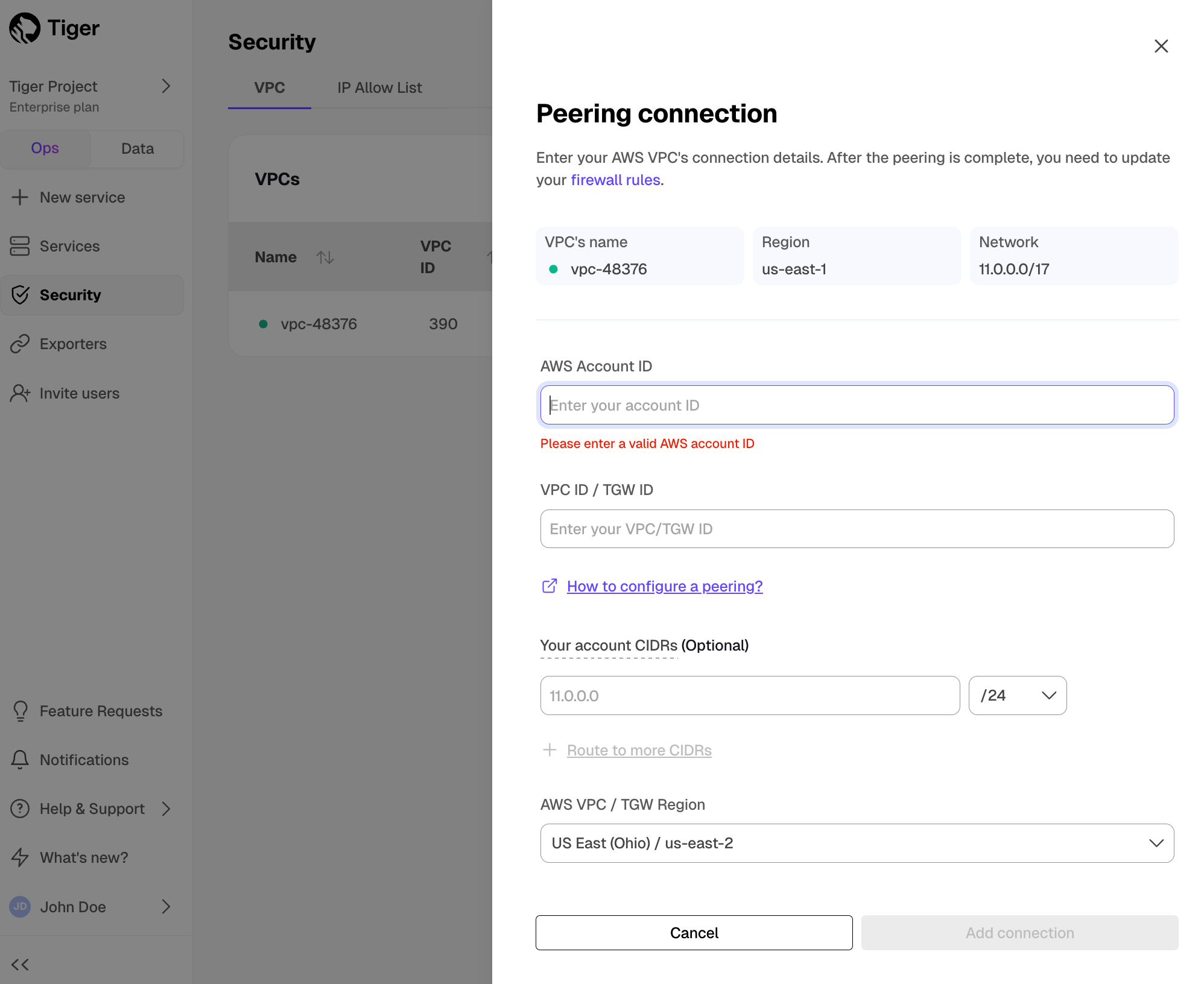
Add a peering connection:
-
In the
VPC Peeringcolumn, clickAdd. -
Provide your AWS account ID, Transit Gateway ID, CIDR ranges, and AWS region. creates a new isolated connection for every unique Transit Gateway ID.
-
Click
Add connection.
-
In the
-
In
-
Accept and configure peering connection in your AWS account
Once your peering connection appears as
Processing, you can accept and configure it in AWS:-
Accept the peering request coming from . The request can take up to 5 min to arrive. Within 5 more minutes after accepting, the peering should appear as
Connectedin . -
Configure at least the following in your AWS account networking:
- Your subnet route table to route traffic to your Transit Gateway for the Peering CIDRs.
- Your Transit Gateway route table to route traffic to the newly created Transit Gateway peering attachment for the Peering CIDRs.
- Security groups to allow outbound TCP 5432.
-
Accept the peering request coming from . The request can take up to 5 min to arrive. Within 5 more minutes after accepting, the peering should appear as
-
Attach a service to the Peering In
- Select the you want to connect to the Peering .
- Click
Operations>Security>VPC. - Select the , then click
Attach VPC.